The best AI tools for PPT and presentations in 2026
The tool that defined this category two years ago, Tome, does not exist anymore as a presentation product. The company raised $81 million, hit 20 million users in 18 months, and was on every “best AI presentation tool” list of 2023 and 2024. In April 2025, it shut the presentation product down. The team pivoted to a sales tool called Lightfield. The Tome brand was sold to AngelList for legal document summarization.
So if a roundup tells you to build your workflow around the most hyped tool of the month, ignore it. This category is moving fast, and the winners change. What follows is the current set worth using right now, with the things sales and marketers actually need to know: pricing, what you have to give the tool to get a deck out, how long it really takes, the learning curve, and what users genuinely say after a few months of using the thing.
Twelve tools in total, sorted by what they do, with current pricing checked in May 2026 and a plain “skip it if” line on every one. If your search started elsewhere, we also have roundups for AI image prompts for B2B marketers, AI video generators, best AI newsletters, and a Top 100 AI Tools list.
What “a new PPT in a few minutes” actually means in 2026
The honest version. Almost every tool here will give you a 10 to 15 slide deck from a prompt in under two minutes. The first draft will look fine. Sometimes it will look great. It will never be the final deck you present.
Real users land in the same place after a few weeks. The AI gets you from a blank canvas to a structured first draft, and that is the gift. The last 20 percent, the bit where the deck stops feeling like an AI deck and starts feeling like yours, still needs your hand. Editing the copy. Replacing generic stock images. Tightening the structure. Adding the one chart that only you can build.
So the right question to ask any of these tools is not “can it make a deck in three minutes.” They can. The question is whether the draft it gives you is close enough to your real deck that fixing it takes less time than starting from scratch in PowerPoint. For a sales deck or an internal marketing update, the answer is usually yes. For a high-stakes investor pitch or a brand-critical keynote, the answer is usually no, and you use the tool as a starting point, not a finished product.
With that calibration set, the rest of this guide tells you which one to pick for which job.
What sales and marketers should actually look for
The criteria that matter once you actually use these tools day to day:
What you have to give it. Some tools want a sentence prompt (“create a sales deck on X for Y industry”). Some want an outline. Some want a full document or a URL to summarize. Some want a Google Doc or a Notion page. Match the input to the kind of content you already produce.
Time to a usable first draft. Two minutes is the marketing claim. Ten minutes is the honest version once you account for editing the obvious issues. Two hours is the realistic version for a deck you would actually present externally.
Export quality. Most AI presentation tools are web-first. When you export to .pptx the layouts can shift, fonts can break, and animations can disappear. If your deck has to land in someone’s PowerPoint inbox, export quality matters more than web polish.
Brand controls. A free tool can generate beautiful generic slides. A paid tool, if it is any good, will let you load fonts, colors, and a logo once and apply them automatically forever. For a sales team sending decks every day, brand consistency is the actual feature.
Learning curve. Some tools work the moment you log in. Some need a few hours before you stop fighting the canvas. Be honest about which kind of tool your team has time for.
Reviews after the honeymoon. Almost every AI presentation tool feels magic in the first ten minutes. The ones worth paying for are the ones whose users still like them six months later. We have flagged that where the gap is real.
The 12 tools at a glance
| Tool | Type | What you give it | Time to first draft | Starting price | Free option |
|---|---|---|---|---|---|
| Gamma | AI-native | Prompt, outline, or document | ~1 min | ~$8/mo Plus | Yes, 400 lifetime credits |
| Beautiful.ai | AI-native | Prompt or outline | ~2 min | $12/user/mo | 14-day trial |
| Decktopus | AI-native | A title and a few questions | ~1 min | ~$14.99/mo | Limited trial |
| Presentations.AI | AI-native | Prompt or topic | ~1 min | Paid plans, free trial | Free trial |
| Pitch | AI-native | Prompt or template | ~2 min | ~$8/user/mo Pro | Yes |
| Microsoft Copilot for PowerPoint | PPT add-on | Word doc, prompt, or outline | ~2 min | $30/user/mo on top of M365 | None |
| Plus AI | Google Slides and PPT add-on | Prompt or document | ~1-2 min | ~$10/mo | Free trial |
| SlidesAI | Google Slides add-on | Text passage | ~30 sec | ~$10/mo Pro | Yes, limited |
| Canva | Design-first | Prompt | ~1 min | Canva Pro ~$15/mo | Yes |
| Visme | Design-first | Prompt or data | ~2 min | Starter ~$29/mo | Yes, limited |
| Slidebean | Specialized: pitch decks | Outline and your numbers | ~5 min | ~$8/mo | Free trial |
| Prezi AI | Specialized: non-linear | Prompt or outline | ~2 min | Plus ~$19/mo | Yes, limited |
AI-native presentation tools
These were built around AI from day one. You give them a prompt or a document, and they generate a full deck, design and content together. The best ones in 2026 are good enough that the first draft is genuinely useful. The worst ones still feel like generic slides with a prompt box on top.
1. Gamma
Quick facts
- Best for: the highest-quality general-purpose AI deck, fast
- Price: free with 400 lifetime credits and a watermark on exports, Plus around $8 to $10/month, Pro around $15 to $18/month, Team around $40/user/month
- What you give it: a one-line prompt, a longer outline, or a pasted document or URL
- Time to first draft: under a minute for the generation, ten minutes of edits to make it presentable
- Learning curve: the easiest in this list, a non-designer can ship a deck on day one
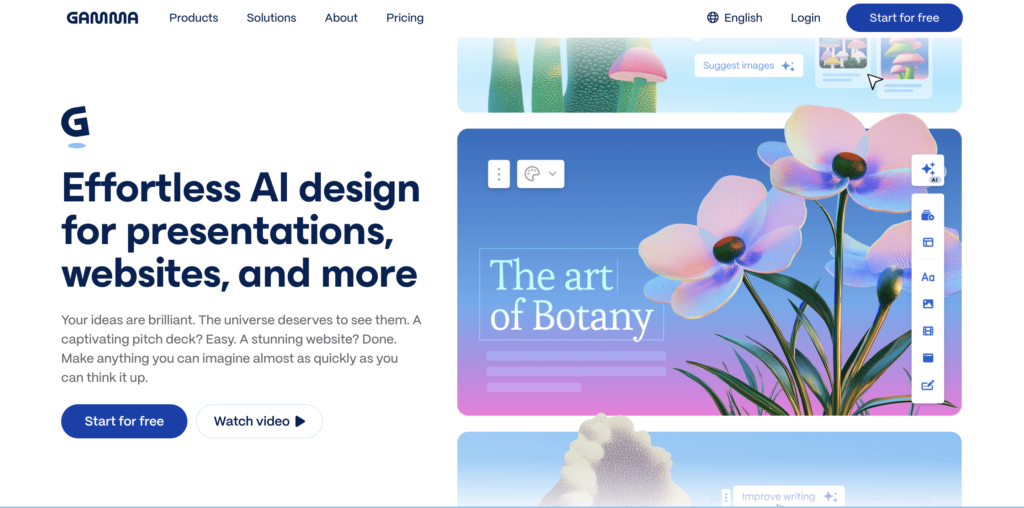
Gamma is the clear leader of this category in 2026. It has reportedly hit 70 million users and $100 million in annual revenue, which is more than every other tool here combined. The reason is plain: the default output looks better than the competition, the editor is genuinely friendly, and you can take a deck from prompt to shareable web page or .pptx file in under five minutes. It accepts prompts, outlines, or full documents, and it works well for sales decks, marketing updates, internal reports, and conference talks.
Real users praise the speed and the design quality. The most common honest complaint after a few months is that .pptx export sometimes flattens layouts and animations, which matters if your deck has to live in PowerPoint. The free tier is also “lifetime credits,” not monthly, so it functions more as a long trial than a permanent free plan.
Skip it if: the final deliverable absolutely has to be a polished PowerPoint file with intact animations. Web-first is genuinely Gamma’s home turf, and export is the soft spot.
2. Beautiful.ai
Quick facts
- Best for: teams who want brand-locked, polished slides without fighting layout
- Price: Pro $12/user/month, Team $40/user/month, Enterprise custom
- What you give it: a prompt and a topic, or your own content slide by slide
- Time to first draft: about two minutes for the generation, then most edits feel snap-to-grid rather than manual
- Learning curve: medium, the “Smart Slide” approach takes a few sessions to feel intuitive
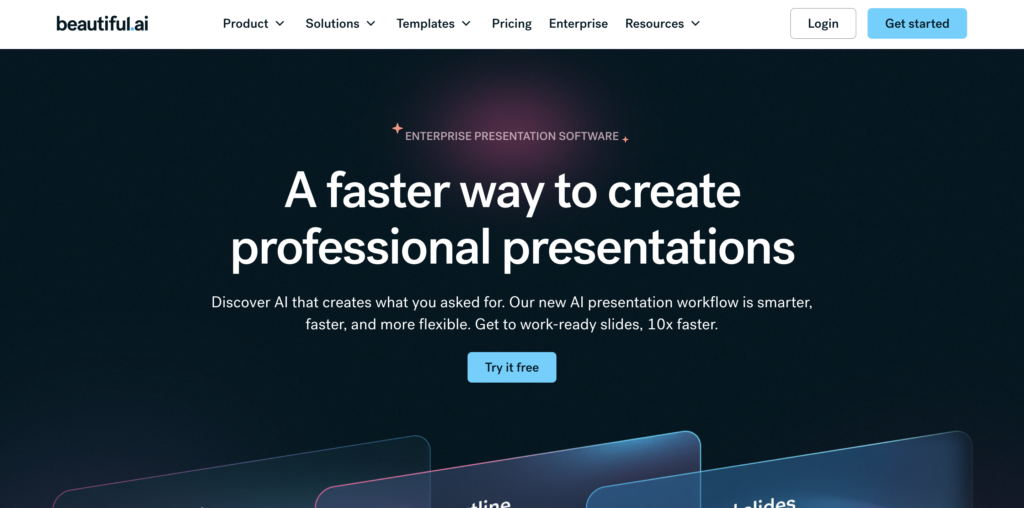
Beautiful.ai takes a different angle. Instead of letting you place anything anywhere, it works with structured “Smart Slide” templates that auto-reflow as you add content. The result is that even a non-designer cannot really make an ugly slide. For a sales team where every rep is sending decks to clients and consistency matters more than creativity, this is a genuine feature, not a limitation.
The brand kit feature is the strongest in this group. Upload your fonts, colors, and logo once, and every slide a team member generates respects them. .pptx export is also one of the cleanest in the category. There is no permanent free tier, which is a real drawback if you want to test it casually, and the $40/user/month team plan is the steepest price in this guide.
Skip it if: you want creative flexibility or a free option. Beautiful.ai trades both away on purpose for consistency, and the price is built for teams that value that trade.
3. Decktopus

Quick facts
- Best for: people who freeze in front of an empty prompt box
- Price: Pro around $14.99/month with 30 credits a month, Business around $34.99/user/month
- What you give it: a title and a few guided questions (audience, goal, tone), no prompt-writing skill needed
- Time to first draft: under a minute, the guided flow does most of the thinking
- Learning curve: the gentlest in this list, harder to get wrong than easier tools
Decktopus wins on accessibility. Instead of a blank prompt box, it asks you guided questions, what is the deck for, who is the audience, what tone do you want, and uses the answers to drive the generation. For a salesperson or marketer who is not confident writing a prompt, that scaffolding is genuinely useful. It also has interactive features other tools lack, like embedded forms, audience Q&A, and lead capture inside the deck, which makes it interesting for live webinars or demo sessions.
Reviews praise the ease. Honest complaints focus on three things. The output is less polished than Gamma or Beautiful.ai. The Pro plan’s credits expire each month and do not roll over, which creates artificial pressure to use them. And the free tier is essentially a one-off trial rather than a real free plan.
Skip it if: you want the best-looking output or you want a permanent free tier. Decktopus competes on ease, not aesthetics or generosity.
4. Presentations.AI
Quick facts
- Best for: people who liked Tome and need a like-for-like replacement
- Price: paid plans with a free trial, custom enterprise tier, public pricing varies
- What you give it: a prompt or topic, with a focus on branded business decks
- Time to first draft: about a minute
- Learning curve: low, the template-driven design choices keep the canvas predictable
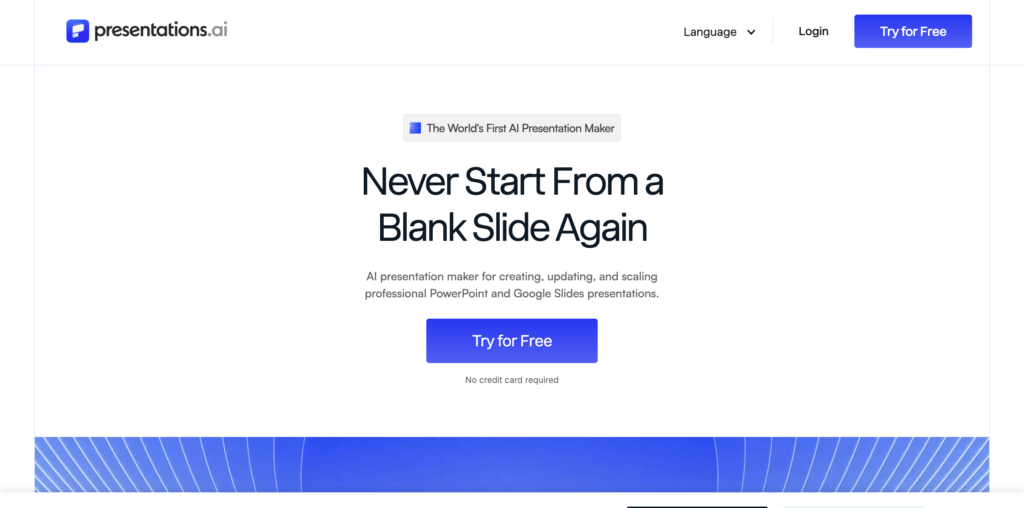
Presentations.AI reports more than 8 million users and positions itself directly as the answer for former Tome users who still want a clean, AI-native, slide-based experience. Where Tome leaned web-first and tile-based, Presentations.AI is built around traditional slides with high-fidelity PowerPoint export and brand sync from the start. For business decks where the final format will probably be .pptx, that orientation matters.
User reviews credit the brand sync and the PowerPoint export quality. Honest complaints note that the AI output, while clean, can feel formulaic compared to Gamma’s more varied designs, and the pricing structure is less transparent than competitors.
Skip it if: you want the most creative or varied output. Presentations.AI is built for structured, branded business decks, and the design vocabulary stays inside that lane.
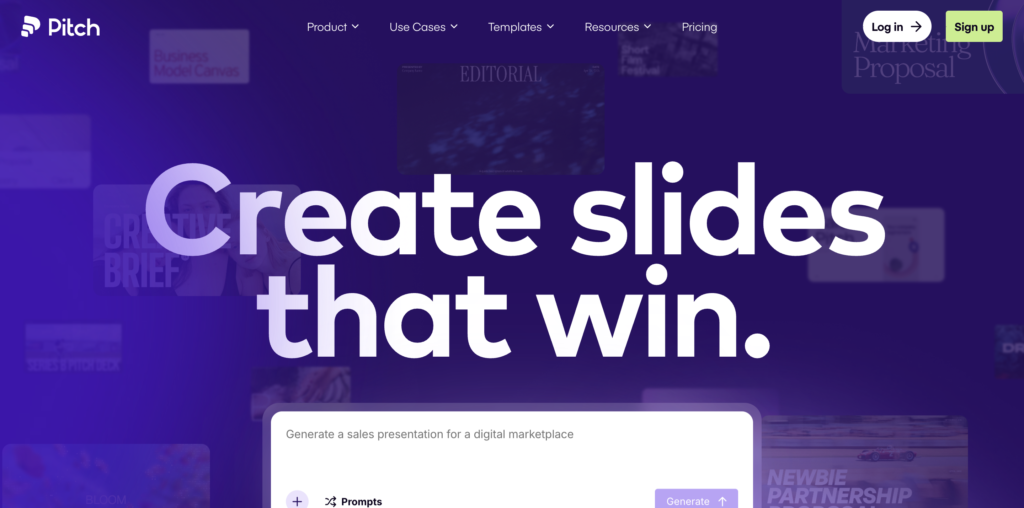
5. Pitch
Quick facts
- Best for: startup and GTM teams who pitch repeatedly and want analytics on every send
- Price: Free, Pro from around $8/user/month, Business and Enterprise tiers above
- What you give it: a prompt or your own outline, with a starting template
- Time to first draft: about two minutes
- Learning curve: low to medium, designers will feel at home faster than newcomers
Pitch sits in an interesting spot. It is built like a modern team workspace for presentations rather than a single-shot AI generator, with real-time collaboration, template libraries, and trackable share links that show who viewed your deck and for how long. The AI assist is solid but not the centerpiece. For a sales team sending the same pitch to dozens of prospects and wanting to see who actually opened it, the analytics layer is the real reason to be here.
Reviews praise the collaboration and the link tracking. Honest complaints point out that the AI features are gated on higher tiers, the editor can feel heavier than Gamma’s, and the company has changed direction enough times that some features feel half-finished.
Skip it if: you want a one-shot AI deck generator with no collaboration or analytics layer. You will be paying for the parts of Pitch you do not use.
AI add-ons for the tools you already use
This group is for people whose final deliverable has to be in PowerPoint or Google Slides. Instead of a separate web app, the AI lives inside the tool you already know. The advantage is zero export pain. The trade is that the design output is generally more conservative than the AI-native tools.
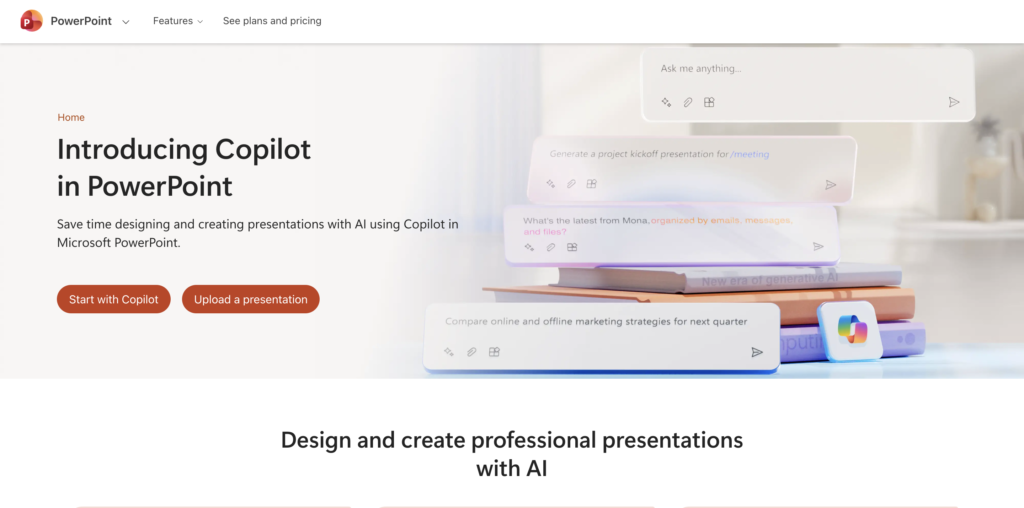
6. Microsoft Copilot for PowerPoint
Quick facts
- Best for: organizations already running Microsoft 365 Enterprise
- Price: $30/user/month for Enterprise, with a Business tier at $21/user/month for smaller organizations (under 300 users), on top of an existing M365 subscription
- What you give it: a Word document, a prompt, or an outline; Copilot will turn a doc straight into a deck
- Time to first draft: about two minutes
- Learning curve: very low if your team already uses PowerPoint, since the AI lives inside the app they know
Microsoft Copilot for PowerPoint is the most defensible enterprise pick. If your company runs on Microsoft and your decks have to be PowerPoint files anyway, Copilot gives you AI generation without changing tools, breaking exports, or training your team on something new. Its standout trick is converting a Word document directly into a structured deck, which is exactly the workflow consultants and analysts run every day.
Reviews praise the integration depth and the predictability. Honest complaints note that the design output is conservative, sometimes flat, compared to Gamma or Beautiful.ai, and that the per-user pricing on top of an existing M365 subscription makes Copilot the most expensive option in this list at scale.
Skip it if: you are not already a Microsoft shop, or you need genuinely striking visual design. Copilot’s design language is corporate-safe by default.
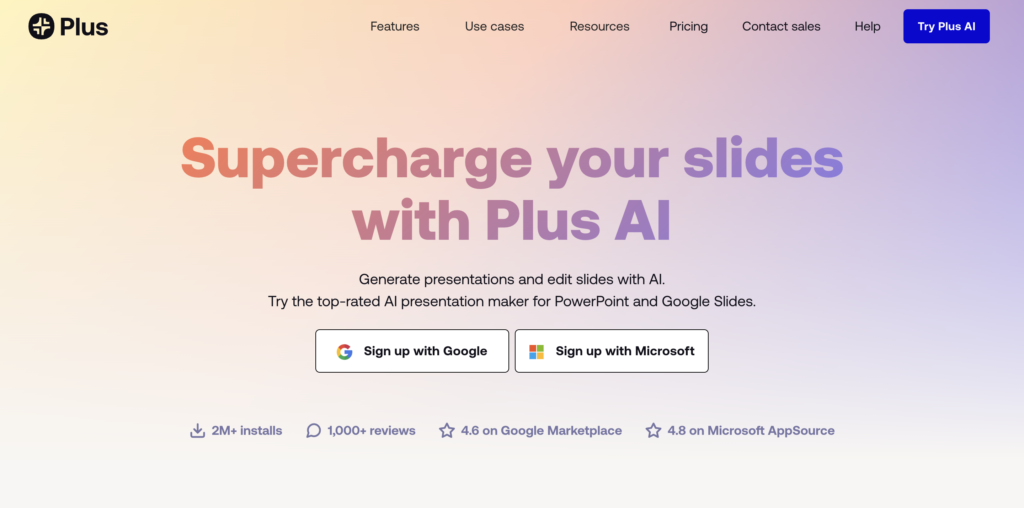
7. Plus AI
Quick facts
- Best for: Google Slides users who want AI generation without leaving Slides
- Price: no permanent free tier, paid plans from around $10/month, Pro around $20/month
- What you give it: a prompt or a document, all inside Google Slides or PowerPoint
- Time to first draft: one to two minutes
- Learning curve: low, it is an add-on to a tool people already know
Plus AI is the answer for the Google Slides half of the market. It installs as an add-on inside Slides (and now PowerPoint too), so the deck lives in your existing tool and respects your existing templates. It has reportedly passed a million installs, which is a strong signal in a crowded category. The “remix” feature, which uses AI to update an existing slide rather than generate a new one, is a real workflow improvement for teams maintaining a library of decks.
Reviews praise the workflow fit. Honest complaints note that the design output stays within whatever template you give it, so it cannot rescue a bad template the way Gamma can rebuild from scratch.
Skip it if: your team does not already use Google Slides or PowerPoint, or you want a tool that brings its own polished design vocabulary.
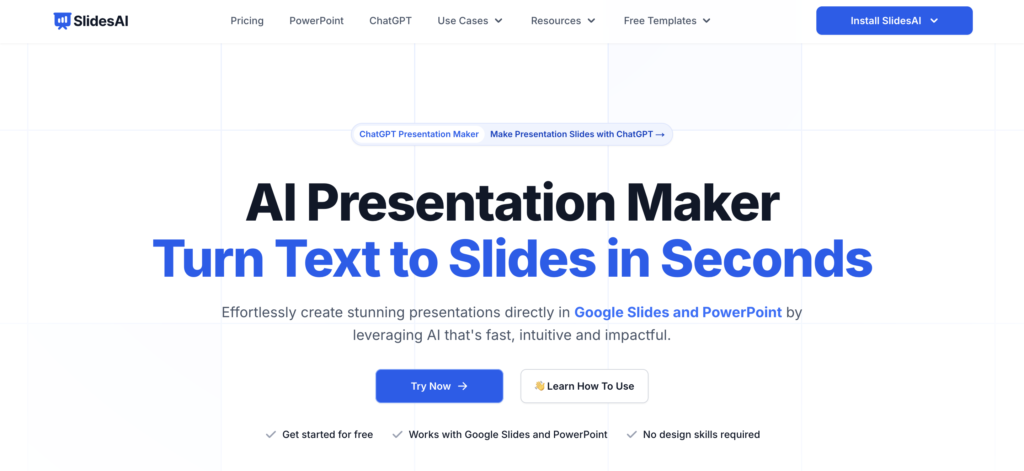
8. SlidesAI
Quick facts
- Best for: the cheapest entry point for Google Slides users
- Price: free with limits, Pro around $10/month, Premium around $20/month
- What you give it: a passage of text, and SlidesAI turns it into slides
- Time to first draft: under a minute
- Learning curve: the lowest in this list, almost no settings to learn
SlidesAI is the budget Google Slides option. You paste a chunk of text, and it produces a structured slide deck inside Google Slides. The pricing is among the lowest here, the free tier is enough to test it properly, and for converting written content into slides, blog post into webinar deck, brief into pitch outline, it does the basic job reliably.
User reviews are positive on price and ease. Honest complaints note that the design output is plain, the AI is not great at choosing which content matters and which is filler, and you will want to edit aggressively before presenting.
Skip it if: design quality matters or you need to work in PowerPoint. SlidesAI is built for cheap, fast, Google Slides text-to-deck conversion, and not much else.
Design-first tools with AI generation
These tools were design platforms first and added AI presentation generation later. The trade is breadth versus depth. The asset libraries and design vocabulary are far richer than the AI-native tools, but the AI itself is often outline-level rather than fully finished slides.
9. Canva
Quick facts
- Best for: marketers who want design flexibility, a huge asset library, and a generous free tier
- Price: Free with limits, Canva Pro around $15/month, Teams from around $10/user/month
- What you give it: a prompt (Magic Design), then you finish in the Canva editor
- Time to first draft: about a minute for the AI generation, then real time spent in the design editor
- Learning curve: very low if you already use Canva, low even if you do not
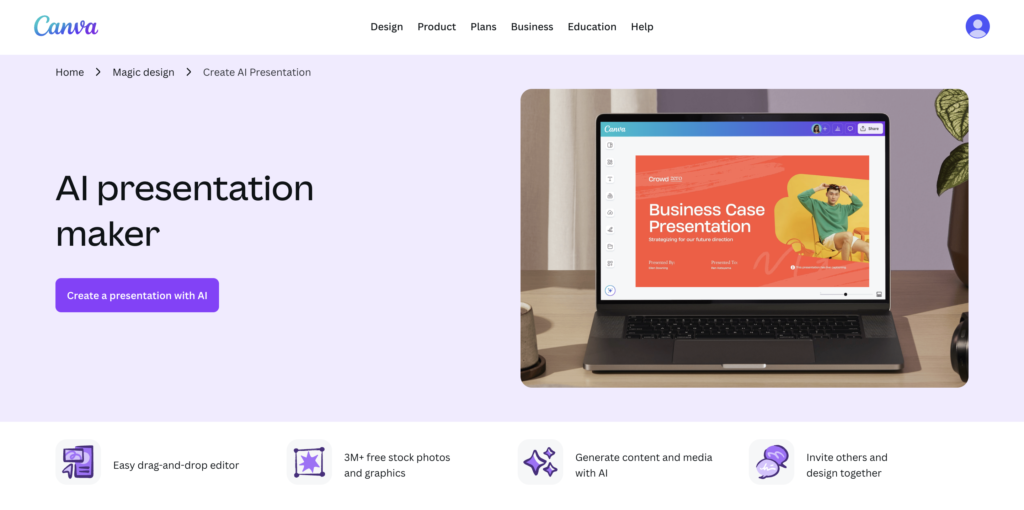
Canva’s AI presentations sit inside its broader Magic Design suite. For a marketing team that already lives in Canva for social graphics and one-pagers, adding presentations to the workflow is free or close to it. The same principle that applies to AI image prompts for B2B marketers applies here: specific style inputs get you dramatically better output than vague ones.
Reviews credit the design freedom and the asset library. Honest complaints note that the AI output is more “starting template with content slots” than “fully designed deck” compared to Gamma, and the .pptx export can shift layouts.
Skip it if: you want hands-off, fully-finished AI output or you need a tool oriented around business slides rather than visual marketing assets. Canva’s strength is design freedom, not finished-deck AI.
10. Visme
Quick facts
- Best for: data-heavy presentations, infographics, and reports
- Price: free with limits, Starter around $29/month, Pro around $59/month
- What you give it: a prompt or your own data; the AI builds slides with charts
- Time to first draft: about two minutes
- Learning curve: medium, the editor is rich and takes time to learn
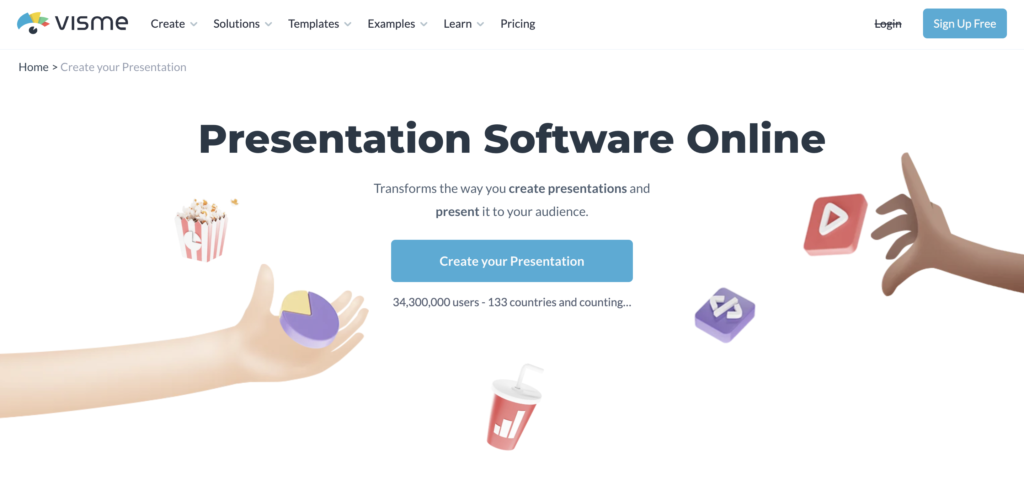
Visme leans into data visualization in a way the AI-native tools do not. If your deck is heavy on charts, infographics, or visual reports, Visme is built for it. The AI generator produces slides with data viz baked in rather than as an afterthought, and the editor gives you genuine control over how the charts look.
Reviews praise the data viz and the variety of output formats (slides, documents, infographics, social graphics all in one tool). Honest complaints note that the price climbs faster than competitors and the editor is heavier than Canva’s for casual use.
Skip it if: your decks are mostly text and a few images. Visme’s strengths show up when data is the point, and the price is hard to justify without that need.
Specialized presentation tools
A small group built for specific use cases. They do not try to be the everything-tool. They are very good at the one thing they target.
11. Slidebean

Quick facts
- Best for: startup founders building investor pitch decks
- Price: All-Access around $8/month, Founders Edition higher, pitch deck consulting available
- What you give it: a structured outline (Slidebean has a pitch deck framework you fill in), plus your numbers
- Time to first draft: about five minutes for the structured fill-in, longer for a deck worth sending to investors
- Learning curve: low, the framework guides you
Slidebean is the only tool here built specifically for one job: startup pitch decks for fundraising. It comes with a Y Combinator-style structure baked in, a slide library curated for investor decks, and optional access to a consulting team who will help you craft the deck and the narrative. For a founder raising a seed or Series A, that focus is the value proposition.
Reviews from founders who have actually raised credit the structure and the consulting layer. Honest complaints note that as a general presentation tool for sales or marketing decks, it is too narrow, the pitch deck templates are good but limited to that genre.
Skip it if: you are not raising money. Slidebean is laser-focused on fundraising decks and the value disappears outside that.
12. Prezi AI
Quick facts
- Best for: non-linear, zooming presentations for conference talks and creative storytelling
- Price: Plus around $19/month, Premium around $25/month, Teams from $59/user/month
- What you give it: a prompt or outline
- Time to first draft: about two minutes
- Learning curve: medium, the non-linear canvas is a different mental model than slides
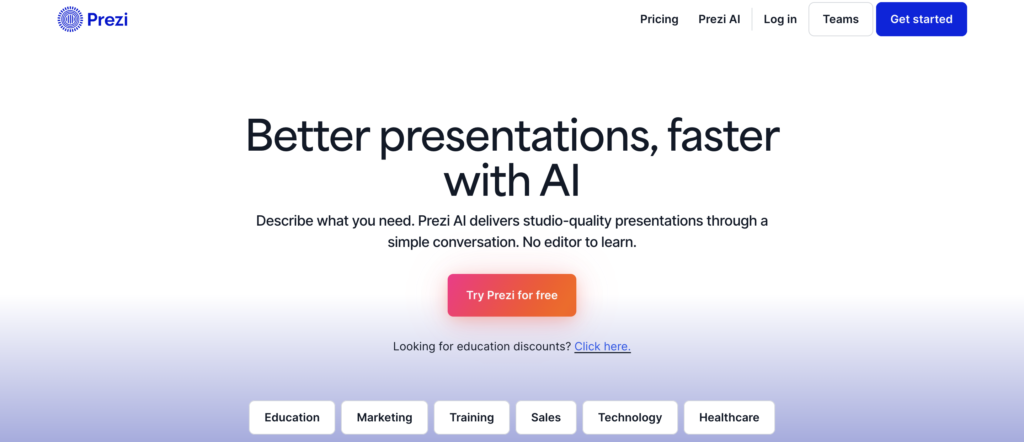
Prezi is the long-running alternative to slide-based presentations. Instead of a deck, you build a single canvas the audience zooms into and around. The AI generation layer turns a prompt into one of these non-linear presentations. For a conference talk or a creative pitch where you want the format itself to stand out, the non-linear approach genuinely lands differently than yet another slide deck.
Reviews credit the visual impact for live audiences. Honest complaints note that for everyday business work, sales decks, internal updates, board reports, the non-linear format is more distracting than helpful, and the editor has a steeper curve than slide tools.
Skip it if: you make standard business decks. Prezi is built for moments when the format itself is part of the message, and that is a smaller share of work than people think.
Or use the AI you already pay for: ChatGPT, Claude, or Gemini
Honest question worth asking before you buy anything new: do you already pay for ChatGPT, Claude, or Gemini? If yes, you can build a serviceable deck with the subscription you already have. The output will not match Gamma’s polish, but for an internal update, a discovery call deck, or a webinar draft, it is often enough.
Four ways to do this, ranked from least to most setup.
Method 1: The outline approach (any plan, even free)
The simplest workflow. Ask the AI for a structured slide-by-slide outline, then paste it into PowerPoint or Google Slides using a template you already have.
Steps:
- Open ChatGPT, Claude, or Gemini.
- Brief it properly. Not “make me a deck about X.” Tell it the audience, the goal, the number of slides, the structure, and the tone.
- Ask it to output the deck slide by slide, with a title and 3-4 bullets per slide.
- Paste the outline into PowerPoint or Google Slides one slide at a time, using a template you already have.
A prompt that works:
You are helping me build a 12-slide sales discovery deck. The audience is heads of marketing at B2B SaaS companies, 50 to 500 employees. The goal of the deck is to book a follow-up call. Our differentiator is [X]. Our key proof points are [Y, Z].
Output the deck slide by slide. For each slide give me a title under 8 words and 3 to 4 bullets under 12 words each. Use active verbs. Avoid generic corporate language. Be specific.
The output is text. You bring the design. Lowest friction of any method here, and it works with the free tier of every AI tool.
Method 2: ChatGPT, Claude, or Gemini directly inside PowerPoint or Google Slides
This is the most useful method as of 2026. Both ChatGPT and Claude shipped PowerPoint add-ins this year. Gemini has been native to Google Slides for a while. Once installed, you write prompts inside the slide tool itself and the AI builds or edits the deck in place.
- ChatGPT for PowerPoint rolled out across Free, Plus, Pro, Business, Enterprise, and Education plans in May 2026. Install from Microsoft AppSource, open it from the PowerPoint ribbon, sign in, and prompt from inside the app. You can create a deck from a prompt, a Word document, a spreadsheet, or an existing deck.
- Claude for PowerPoint is in beta. Install from AppSource, sign in with your Anthropic account, and prompt from inside PowerPoint. Reviewers note the writing quality is the strongest of the three, especially for nuanced topics where the difference between “fine” and “actually persuasive” comes from the words.
- Gemini in Google Slides is built into Google Workspace paid plans. Open the side panel inside Slides and prompt. The main difference from ChatGPT and Claude is that Gemini edits one slide at a time rather than the whole deck, which is fine for editing but slower for generation.
For sales and marketing teams already paying for one of these AI tools, this is the closest you get to a dedicated AI presentation tool without paying again. The result is a real PowerPoint or Slides file with all the editing power of the host app.
Method 3: ChatGPT code interpreter, for a real .pptx file (Plus, Pro, Business)
ChatGPT Plus and above can run Python directly inside the chat, which lets it generate an actual .pptx file you download. Not text. A real PowerPoint file.
Steps:
- In ChatGPT, give it your content. A brief, a Word doc, a long-form draft, pasted directly into the chat.
- Ask it to use the python-pptx library to build a PowerPoint file from that content.
- Download the .pptx.
A prompt that works:
Use the python-pptx library to build a PowerPoint deck from the content I am pasting below. Each slide should have a clear title under 8 words and 3 to 4 short bullets under 12 words each. Use a simple, professional template, no fancy graphics. Output a downloadable .pptx file. [paste your content here]
The design will be plain, default fonts, no images, basic layouts. But you get a real .pptx you can open in PowerPoint, apply your template’s master slide to, and present from. For analysts and consultants who care about content over polish, this is genuinely fast and the file format is exactly what you need.
Method 4: Claude artifacts, for HTML slides
Claude’s artifacts feature can build a full HTML slide deck you view in the browser, screenshot, or share as a web page. Useful for internal decks where you do not need a .pptx, or as a quick visual reference. Prompt Claude to “build an HTML slide deck about X with N slides, each as a clearly separated section, in a clean professional style with good typography.” You get a self-contained file. The visual quality is better than ChatGPT’s bare python-pptx output, though still not at Gamma’s level.
Things to know before you go this route
A few honest points worth setting expectations on.
The text is often better than a dedicated tool gives you. Especially with Claude, the writing on slides tends to be more nuanced and less generic than the output of an AI presentation tool. If words matter more than visuals, this is a real reason to stay with the chat tool you already pay for.
The visual layer is the gap. None of these methods will hand you a finished deck that looks like a Gamma output. Expect to spend real time in PowerPoint or Slides on the design after the AI has done the content. That is the trade.
Use a template you already have. The biggest design jump does not come from getting the AI to design better. It comes from applying your existing brand template. Open PowerPoint with your team’s master slide, then paste the AI’s structure in.
The best workflow is hybrid. Use ChatGPT or Claude to draft and edit the content. Use a slide tool (Google Slides, PowerPoint, or one of the dedicated AI tools above) for the visual layer. The chat tool writes a stronger pitch. The slide tool makes it look like a finished deck.
For most sales and marketing teams, this hybrid is the honest answer. The dedicated AI presentation tools are mostly paying for the design, not the thinking. The thinking is the part you already have a tool for.
How to brief one of these tools so it gives you a usable deck
This is the part that decides whether you get a draft you can edit in ten minutes or one you throw away.
Lead with the audience and the goal, not the topic. “Make me a deck about content marketing” is the worst prompt. “Make me a 12-slide sales deck for a SaaS CMO, the goal is to book a discovery call, our differentiator is X” is far better.
Bring your own content if you have it. If you have a blog post, a brief, or a long-form pitch, paste it in. The output will be five times better than from a thin prompt. This is the same logic behind what a content brief should include. The more specific your input, the better the output on the other side.
Tell it the format you want. Number of slides, tone, structure. The default deck length is usually too long.
Give it your brand inputs early. Most paid plans let you upload fonts, colors, and a logo. Do that before you generate your first deck.
For learning resources, every paid tool here has official docs and templates that are far better than third-party tutorials. Gamma’s resources page, Beautiful.ai’s templates, Decktopus’s help center, Plus AI’s docs, Microsoft Learn for Copilot, and Canva’s design school all have free, structured guidance. For pitch decks specifically, Slidebean’s blog and the Y Combinator pitch deck guide cover the structural questions more honestly than the tools themselves.
How to choose
Match the tool to the real job and the real format constraint, not to the most viral demo.
- General sales or marketing deck, fast, web-first: Gamma.
- Brand-locked sales team deck where consistency matters more than creativity: Beautiful.ai.
- You hate writing prompts and want guided questions: Decktopus.
- You came from Tome and want a like-for-like business deck experience: Presentations.AI.
- You pitch repeatedly and want analytics on every send: Pitch.
- The final file has to be PowerPoint and you are already on M365: Microsoft Copilot.
- You live in Google Slides: Plus AI, or SlidesAI on a tight budget.
- You are a marketer who already uses Canva for everything else: Canva Magic Design.
- Your decks are data-heavy: Visme.
- You are raising venture funding: Slidebean.
- You are giving a conference talk and want the format to stand out: Prezi AI.
Then test before you commit. Almost everything here has a free tier or trial. Build one real deck, the one you actually need this week, and see how the output feels after you have edited it for real use. Paying attention to the editing step is the honest test. If the deck took you 90 percent of the time you would have spent in PowerPoint anyway, the tool did not save you what it claimed.
The honest things about all of these
A few points that hold regardless of which tool you pick:
The first draft is the gift. Stop expecting more. The tools that promise “no editing needed” are lying. The tools that frame themselves as “fast first draft” are telling the truth.
Generic stock images give the deck away. Every AI tool here pulls from similar stock libraries. If you want the deck to feel like yours, replace at least half the images with brand assets, screenshots, or genuinely useful photos.
The AI cannot fix a bad message. A polished deck with weak content is worse than a plain deck with sharp content. The structure, the argument, the proof points, none of that is automated. That part is still you.
Export quality matters more than people admit. Most AI tools are web-first. If your deck has to land in a PowerPoint file the buyer can save, test the export on day one, not the night before a pitch.
Pricing changes fast. Tome was the leader two years ago and is gone. Gamma is the leader now. Whatever you pick, do not assume the pricing or the company will look the same in a year. Use month-to-month billing where you can, and avoid lifetime deals.
The bottom line
AI presentation tools in 2026 are genuinely good. A salesperson can have a respectable client-facing deck in fifteen minutes. A marketer can turn a brief into a webinar outline in five.
The honest part most articles skip is that the tools save you the design and structure, not the thinking. The slide that makes a buyer say yes is still the one you wrote, not the one the AI generated.
This is the same problem content blindness creates at scale. AI presentation tools make it easier than ever to add to the pile of generic content. Use them to ship the deck faster, then put that saved time into the message and the writing that actually moves your prospects.
For the best AI newsletters covering how these tools evolve, and for the broader picture of what AI is doing to content marketing, those posts cover the territory in depth.
If you want help with the message side of your sales and marketing decks, see what we do or book a call.
Think B2B is boring?
That's coz you are not subscribed to ours newsletter. We share a 100 bad days (of B2B marketing) made a 100 good stories. A 100 good stories make YOU interesting at parties.
Almost there. Check your inbox and click the confirmation link.

Rashmita is content marketer with 8 years of experience building and growing SaaS brands. Now she tests various AI tools for marketers and shares her feedback on this blog, LinkedIn, Instagram, and YouTube.